If for whatever reason you cannot access the Identillect website it is recommended you contact customer support however, here is one possible solution.
Problem
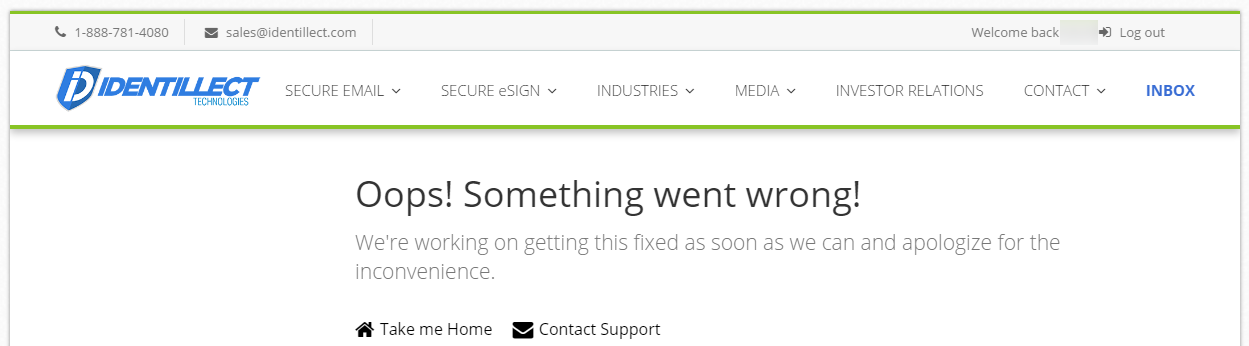
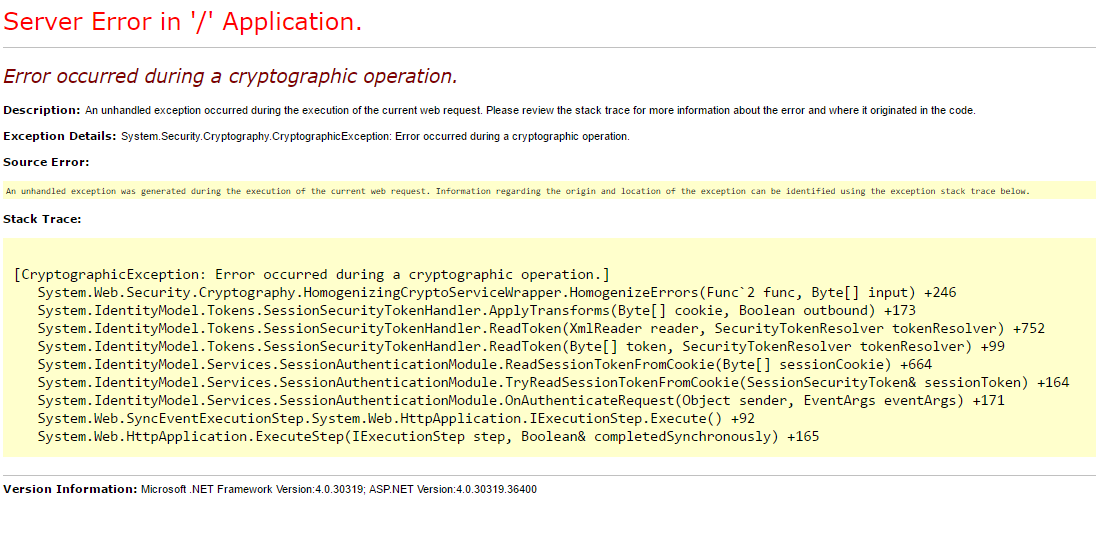
Cannot access the Identillect website and receive an "Oops Something went wrong" message.

Resolution
The resolution will be broken down into sections with each section pertaining to a specific browser type (i.e. Internet Explorer, Google Chrome, etc.).
GOOGLE CHROME
- Click the Customize icon (top right)
- Click Settings
- Scroll to the bottom of the page (if necessary) and click Show advanced settings...
- In the Privacy section click the Clear browsing data... button
- In the Obliterate the following items from: drop-down choose the past duration (the beginning of time is the most effective for our purpose)
- Select the browsing data you would like to remove (at minimum accept the defaults)
- Click the Clear browsing data button
- Close Google Chrome
- Open Google Chrome and navigate to the Identillect website and log in
- Click the Settings icon (top right)
- Click Settings
- Click the Choose what to clear button in the Clear browsing data section
- Select the browsing data you would like to remove (at minimum accept the defaults)
- Click Clear
- Close Microsoft Edge (if prompted to confirm close click Close all)
- Open Microsoft Edge and navigate to the Identillect website and log in
INTERNET EXPLORER
- Click the Settings icon (top right)
- Click Internet options
- In the Browsing history section of the General tab click Delete...
- Select the browsing data you would like to remove (at minimum accept the defaults)
- Click Delete
- Click OK to close the Internet Options window
- Close Internet Explorer
- Open Internet Explorer and navigate to the Identillect website and log in
MOZILLA FIREFOX
- Click the Open Menu icon (top right)
- Click Options
- Click the Privacy tab
- In the History section click the clear your recent history link
- In the Time range to clear: drop-down select the range you would like to clear (Everything is the most effective for our purpose)
- Select the browsing data you would like to remove (at minimum accept the defaults)
- Click the Clear Now button
- Click OK to close the Options window
- Close Mozilla Firefox (if prompted to confirm close click Close tabs)
- Open Mozilla Firefox and navigate to the Identillect website and log in
SAFARI
- Click Safari in the tool menu (top of screen)
- Click Preferences...
- Click Privacy
- Click the Manage Website Data... button
- Click the Remove All and then click Done
- Close the Preferences... pane
- Quit Safari by clicking Safari in the tool menu and clicking Quit Safari
- Open Safari and navigate to the Identillect website and log in