Identillect enables each user to create a unique signature that will automatically appear on the Compose screen for each newly created email. The signature can contain both formatted text and links.
Instructions
The signature editor can be found on the Profile page and can be accessed either from the sidebar or the drop-down menu at the top right of your screen.
1. Click on the Profile tab on the left side of the screen and you will be directed to the Profile page. Alternately, if you hover over the email address on the top right of the screen you will be presented with a drop-down menu from which you can select the Profile menu item.
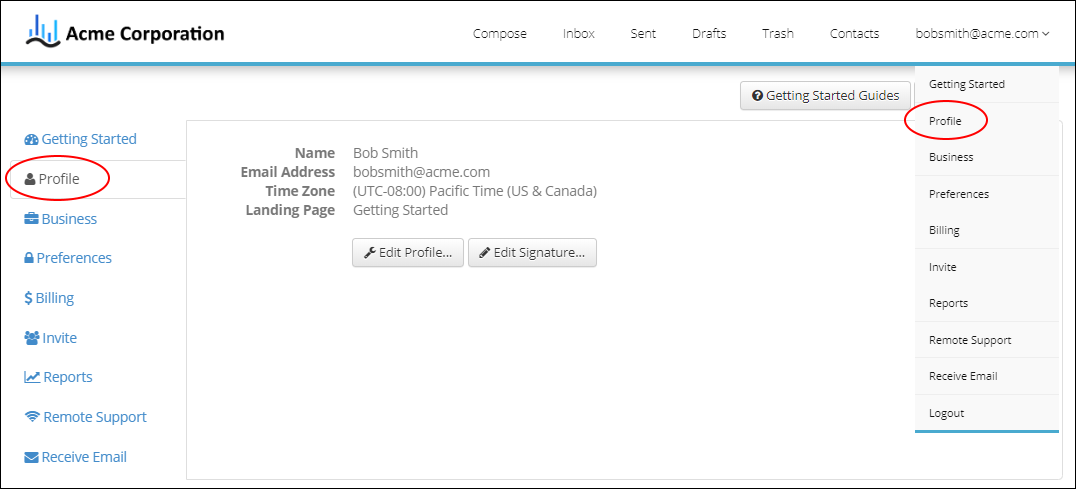
2. Once on the Profile page click on the Edit Signature button. This will bring up the Email Signature popup where you can use the editor to either create a new signature or edit your existing signature. If you want to add a link to a website you can click on the  button to specify the website.
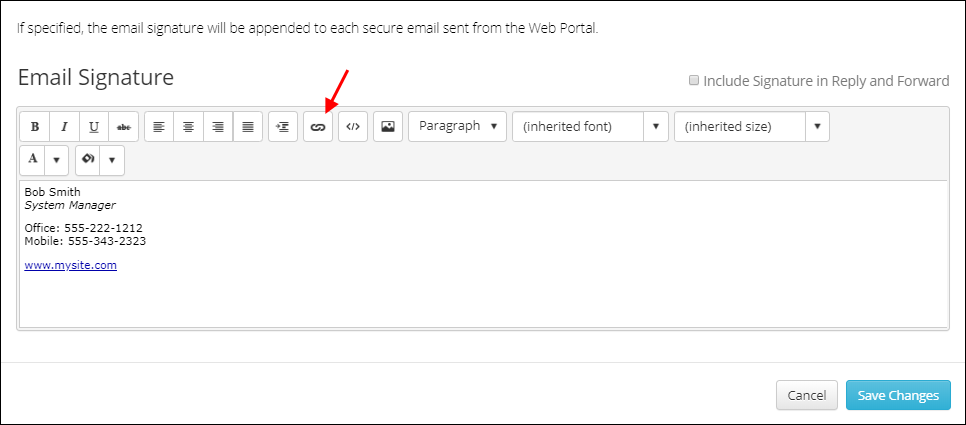
3. Once you have completed editing your signature click on the Save Changes button to save and exit the popup.
*NOTE: Some changes will require you to log out then back in in to be viewed.
Related Topics
Creating a Signature Hyperlink