Often times it is desirable to brand your web portal instance with your business logo rather than the Identillect logo, which acts as the default. This logo will be featured in the top left corner of the screen and will be visible to all the licensed users for your account.
Video Tutorial
Instructions
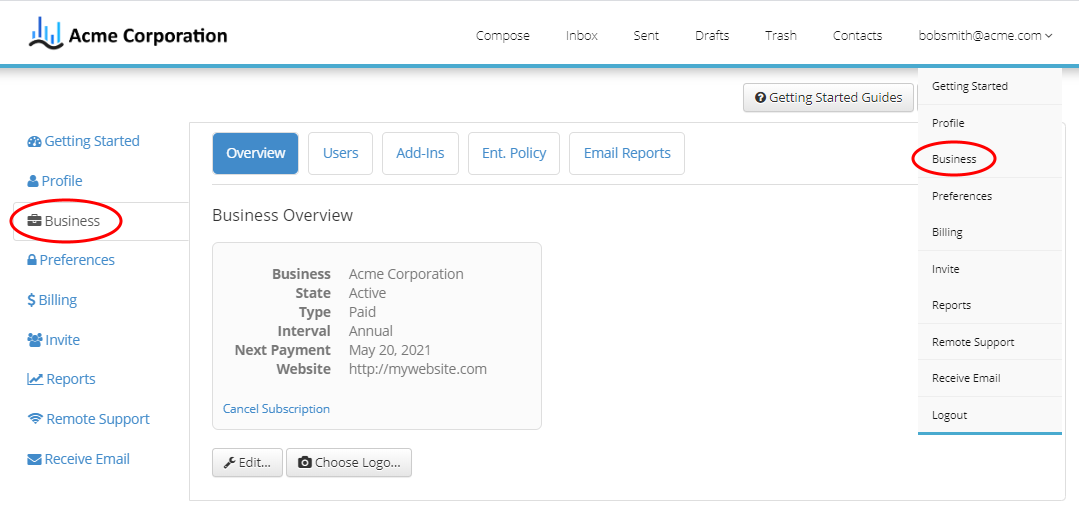
2. Once in the Business page click on the Choose Logo button. This will bring up a popup where you can select the image you want to be your new logo.
3. Click the Select Image button to select the desired image or the Remove link to remove the current image. In the example below there is already a current image. This can be removed or over written by the newly selected image.
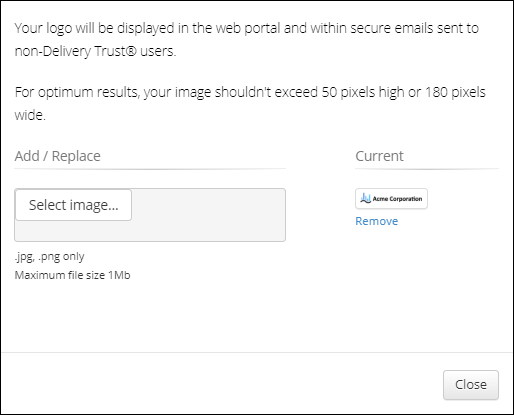
3. Select the button to Close button to exit and save.
*NOTE: Once completed you will see your Logo replace the Identillect Logo on the top left corner of the screen. If you do not see it then try refreshing the browser so it will update.
Related Topics